Kauniainen Sports Hall – Instructions for using the scoreboard system
Instructions for using the scoreboard system
Current instructions for use during matches:
-
Handball Instructions
-
Floorball Instructions
This page contains the preliminary arrangements required for the use of the Jidokan scoreboard system. If you wish to modify the files displayed during a match, the necessary files must be downloaded in advance. before the match For the USB stick, from which the match content is transferred to the scoreboard via the control tablet.
In case of problems, please contact support@jidoka.fi.
File requirements
Images to display: JPG, JPEG and PNG
Media files MP4
Audio files MP3 and wav
Advertisement file formats jpg, JPEG, PNG and MP4
Image and video file resolution: 1920 x 1080 pixels (16:9 aspect ratio)
Logo files PNG, JPEG or jpg, minimum 400 x 400 pixels (1:1 ratio)
USB stick pre-setup
The USB drive needs to be formatted as either NTFS or FAT32. exFAT– not supported.
NOTE: Depending on the size of the USB stick, it may take the operating system a moment to read it, and with larger sticks, it may take about 5 seconds to start copying.
Create a folder on the USB stick called dsbController and subfolders inside this folder ad, goal, guest, home and media.
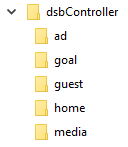
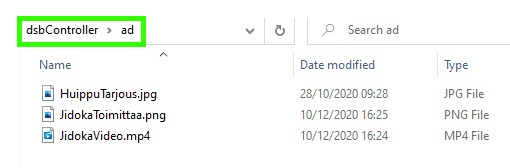
- advertisement Advertisements shown on the display board, which can be images and videos. If you put multiple images and/or videos in a folder, they will all be shown sequentially on the screen.
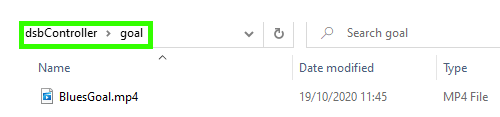
- goal The video displayed by the ”GOAL VIDEO” button on the control tablet. The folder must contain only one video. If the folder contains multiple videos, only one will be used. If no file is found in the folder, the system will use the default goal video.
- Guest. The away team's logo and name. The logo is an image named ”guest” and the name is a text file in .txt format, with the team name on the first line. The text file can be named name.txt or guest.txt
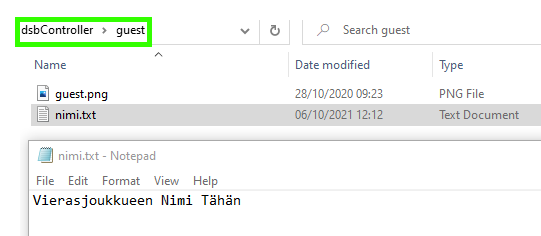
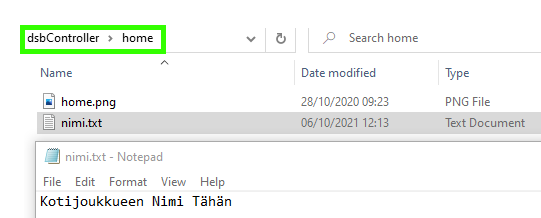
- home Content corresponding to the guest folder, but with the logo filename as home.png. The text file name can be name.txt or home.txt
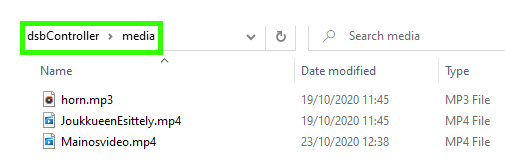
- mediaVideo and audio files played via the video and audio lists opened by the ”Show media” button on the control tablet menu. Additionally, the buzzer that plays in different game situations is named horn.mp3. If this file is not in the folder, the system will use a default buzzer sound.
Note! In troubleshooting sound problems, go through the following steps.
When playing the scoreboard buzzer, goal video, or audio files, first check the hall mixer for:
- The power is switched on from the mixer
- The volume on channel 5 of the mixer is adjusted to the correct level.
- Master volume is on
In addition, the touchscreen of the scoreboard system supplied by Jidoka has a menu from which the volume can also be adjusted. Also check that this volume level adjustment is in the correct position.
Using the logo library
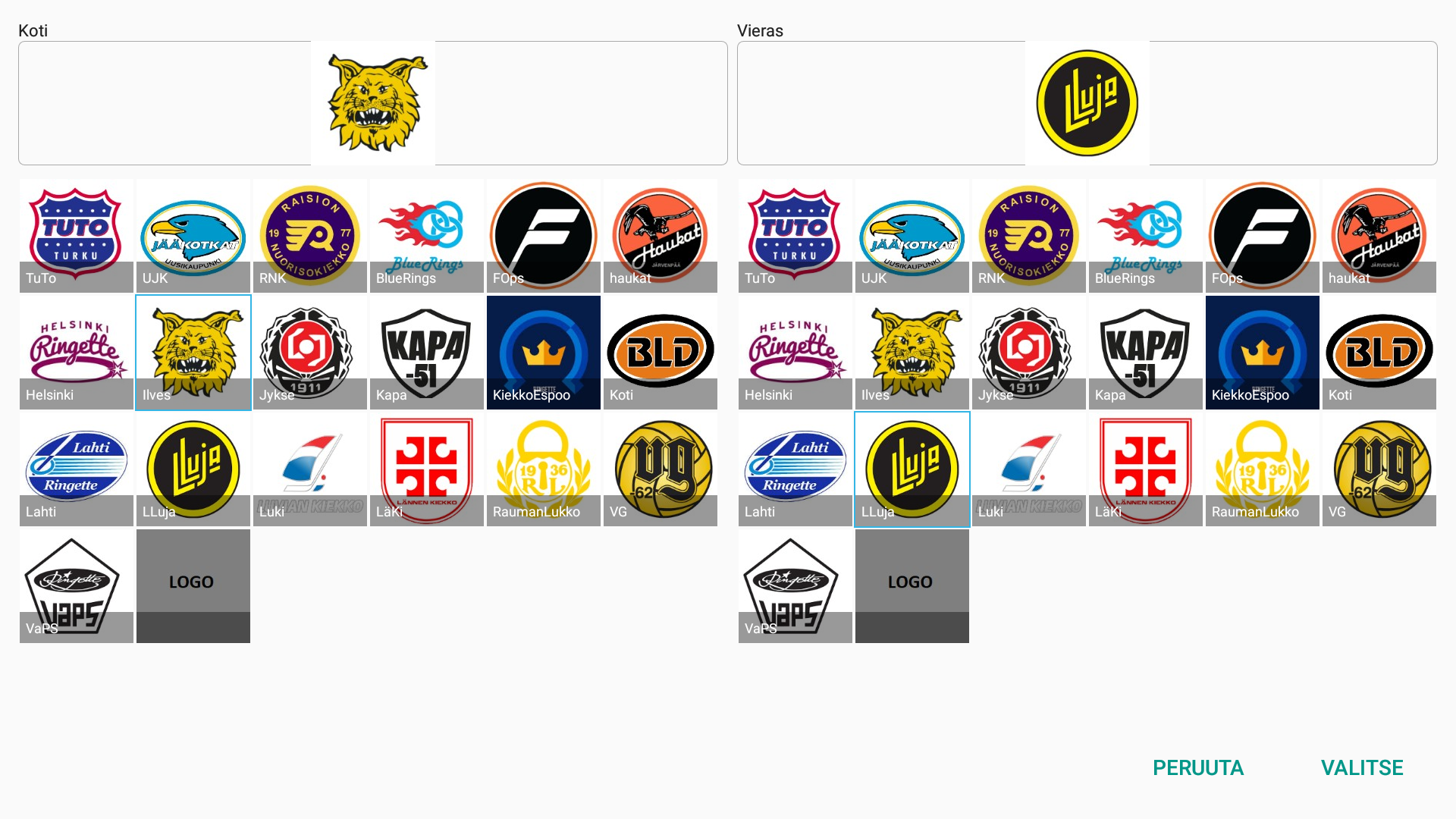
A logo library has been added to the system for species Floorball, and the logos you provided have been brought to the library.
Opening the logo library
- Choose your preference species
- Open the logo library in one of two ways:
- Press existing team logo, or
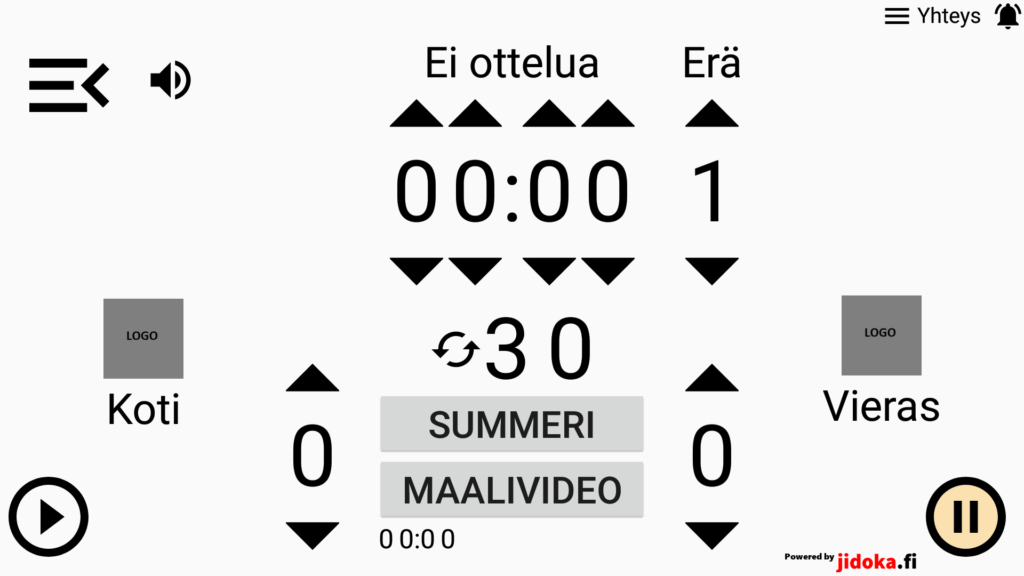
- Press grey “LOGO”button.
- The font library opens.
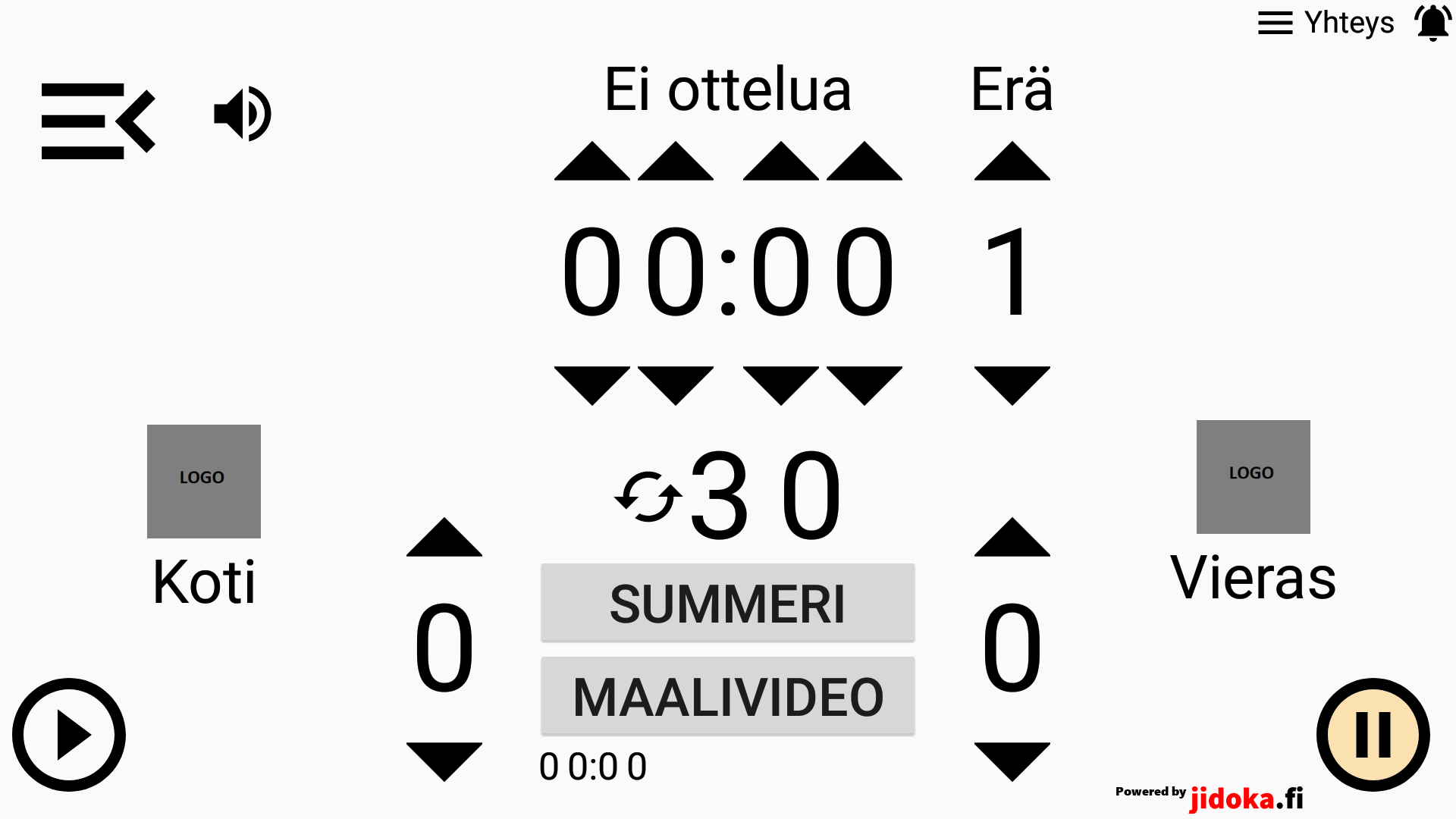
Choosing logos
- Select The logos of both teams by clicking them in the logo library.
- Name displayed at the bottom of the login screen:
- Based on the filename
- Automatically set the team name on the scoreboard
Playing without a logo
- If you don't want to use the logo:
- Choose grey “LOGO”icon
- In this case, the logo remains empty
Adding new logos
- Please send the new logos via email to:
support@jidoka.fi - Please note:
- Modifying or adding logos in other ways It is not possible
Points to note
- Your files that can be brought on a USB stick before choosing logos
- Logo selection
- Do not remove many files
- Connecting a USB drive
- Reset selected logos, so they will need to be re-elected if necessary