Ice Hall – Instructions for using the scoreboard system
Instructions for using the scoreboard system
The current instructions for use during matches can be found from here.
This page contains the preliminary arrangements required for the use of the Jidokan scoreboard system. If you wish to modify the files displayed during a match, the necessary files must be downloaded in advance. before the match For the USB stick, from which the match content is transferred to the scoreboard via the control tablet.
File requirements
Images to display: jpg, jpeg and PNG
Media files MP4
Audio files MP3 and wav
Advertisement file formats jpg, JPEG, PNG and MP4
Image and video file resolution: 1920 x 1080 pixels (16:9 aspect ratio)
Logo files PNG, JPEG or jpg, minimum 400 x 400 pixels (1:1 ratio)
USB stick pre-setup
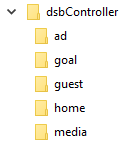
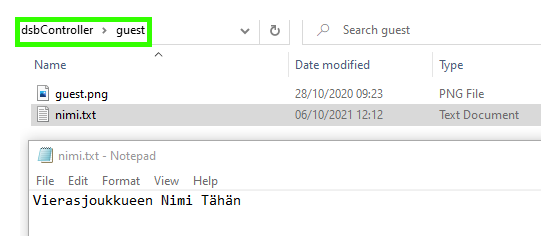
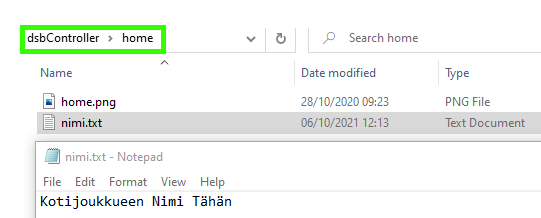
Create a folder on the USB stick called dsbController and subfolders inside this folder ad, goal, guest, home and media.
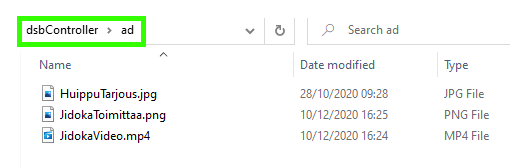
- advertisement Advertisements shown on the display board, which can be images and videos. If you put multiple images and/or videos in a folder, they will all be shown sequentially on the screen.
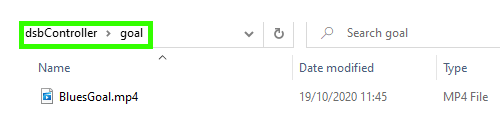
- goal The video displayed by the ”GOAL VIDEO” button on the control tablet. The folder must contain only one video. If the folder contains multiple videos, only one will be used. If no file is found in the folder, the system will use the default goal video.
- Guest. The away team's logo and name. The logo is an image named ”guest” and the name is a text file in .txt format, with the team name on the first line. The text file can be named name.txt or guest.txt
Note!
- Two game details: Due to space limitations, team logos cannot be displayed for two games. By placing the team name in a file named nimi2.txt in the home and away folders, the team names for the second game will also be displayed.
- home Content corresponding to the guest folder, but with the logo filename as home.png. The text file name can be name.txt or home.txt
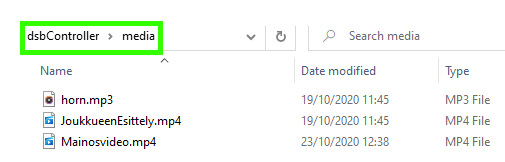
- mediaVideo, image and audio files played via the video, image and audio lists that open from the ”Show media” options in the control tablet menu. The ”horn.mp3” audio file functions as the scoreboard buzzer. If this file is not in the folder, the system uses a default buzzer sound.