Uikko Arena – Instructions for Using the Scoreboard System
Nivala Ice Hall – Uikko Arena
Instructions for using the scoreboard system
Up-to-date instructions for the sports available for use during matches:
Ice hockey
Instructions for creating match media
Match event portal.pdf
General instructions for media usage in the Jidoka scoreboard system.
The media shown on the scoreboard (team names and logos, advertisements, etc.) must be uploaded to the scoreboard system before the match via USB stick. The media is supplied on the stick to the control tablet, which then transfers the material to the scoreboard.
The file transfer is explained in more detail in the category-specific instructions.
In case of problems, please contact support@jidoka.fi.
File requirements
Image files: .jpg, .jpeg yes .PNG
Video files: .MP4
Audio files: .MP3 yes .wav
The scoreboard's main display size is 480 x 192 px. This should be taken into account when preparing full-screen media.
The secondary display screen size is: 512 x 256 px
Match-time advertisement size recommendations: 1920 x 1080 px (Aspect ratio 16:9).
Log files: minimum size 400 x 400 px (aspect ratio 1:1).
Video file resolution is a maximum of FullHD, meaning 1920×1080. The video bitrate should be limited 5000 kbit/s.
Outside of matches, the hall's information screen is displayed on all screens connected to the system.
USB stick pre-setup
Create a folder named dsbController on the USB stick and subfolders within this folder ad, goal, guest, home and media.
https://jidoka.fi/wp-content/uploads/2021/10/menu.png
advertisement in-game advertisements which repeat in the scoreboard advertising space
https://jidoka.fi/wp-content/uploads/2021/10/menuu1-kopio.png
goal: A video that can be manually replayed in a scoring situation
- Freely assignable .mp4 video file
https://jidoka.fi/wp-content/uploads/2021/10/menu2-kopio.png
Guest. Away team name and logo
- Logo on guestimage file named
- The name is a .txt-formatted text file with the team name on the first line.
https://jidoka.fi/wp-content/uploads/2021/10/menu3-kopio.png
home: Home team name and logo
- content as in the guest folder, but the logo is homeimage file named.
https://jidoka.fi/wp-content/uploads/2021/10/menu4-kopio.png
media manually repeatable content
- ”Image, video, and audio files played with the ”Show media" function
- Image and video files are played in full screen on the scoreboard
- Your summer sound can be added to this folder hornnamed .mp3as a file.
https://jidoka.fi/wp-content/uploads/2021/10/menu5-kopio.png
In problem situations
If you encounter problems with the scoreboard, please proceed as follows:
- Please check that the connection ball visible in the top right corner of the controller is green
- If red, check that all Ethernet cables are connected to the correct ports as per the images in the previous section
- If the light is green but the system isn’t working, try restarting the entire scoreboard system by clicking ”Restart System” in the menu at the top left. This will restart the system and take approximately 2 minutes.
- If these don't help, send a message. support@jidoka.fi and write a description of the problem, and when the problem occurred (date and time). With this information, resolving the problem will be easier.
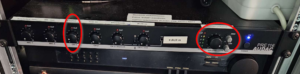
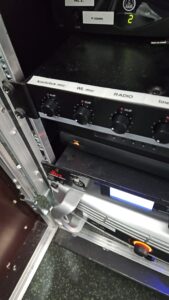
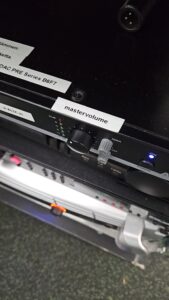
If the sound from the videos or the buzzer is not audible, check that the volume is turned up sufficiently on the control tablet and adjusted on the ice rink mixer. Master volume high enough. The scoreboard is connected to the channel CH1/RADIO. Also check that this has not been set to zero.
Here is a picture yours from the hall mixer with the correct controls circled for the output board.