Äänekoski – Instructions for using the scoreboard system
Instructions for using the scoreboard system
The current instructions for use during matches can be found from here.
This page contains the preliminary arrangements required for the use of the Jidokan scoreboard system. If you wish to modify the files displayed during a match, the necessary files must be downloaded in advance. before the match For the USB stick, from which the match content is transferred to the scoreboard via the control tablet.
In case of problems, please contact support@jidoka.fi.
File requirements
Images to display: jpg and PNG
Media files MP4
Audio files MP3 and wav
Advertisement file formats jpg, JPEG, PNG and MP4
Image and video file resolution: 1920 x 1080 pixels (16:9 aspect ratio). Maximum recommended bitrate for video files 5000kbps
Logo files PNG, JPEG or jpg, minimum 400 x 400 pixels (1:1 ratio)
USB stick pre-setup
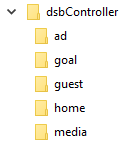
Create a folder named dsbController on the USB stick and subfolders within this folder ad, goal, guest, home and media.
advertisement in-game advertisements which repeat in the scoreboard advertising space
Subfolders must be created in the ad-folder for your displays:
- Perimeter materials created for the perimeter during the match for automatically changing advertisements
- Main - in the folder for automatically rotating ads in the middle of the main dashboard
goal: A video or audio that can be manually replayed in the scoring situation.
If the subfolder contains both video and audio files, prioritise the video files. goal If the folder contains multiple files, by pressing the ”Goal video” and ”Goal song” buttons, the playback will start random video (if imported) or (audio) if imported. Files can be named freely but must be in mp4 or mp3 format.
Subfolders must be created in the goal folder for your displays:
-
- Perimeter materials created for the perimeter during the match for automatically changing advertisements
- Main - in the folder for automatically rotating ads in the middle of the main dashboard
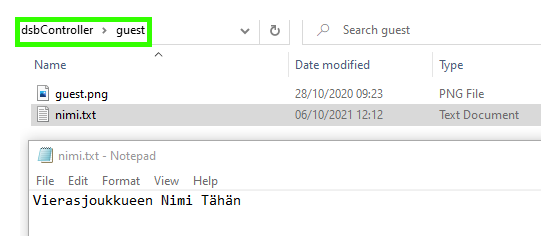
Guest. Away team name and logo
- Logo on guestimage file named
- The name is a .txt-formatted text file with the team name on the first line.
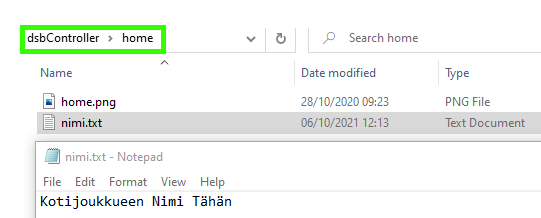
home: Home team name and logo
- content as in the guest folder, but the logo is homeimage file named.
media manually repeatable content
- ”Image, video, and audio files played with the ”Show media" function
- Image and video files are played in full screen on the scoreboard
- Subfolders must be created in the media folder for your monitors:
- Perimeter - Material created in the folder for the perimeter, which will be replicated across the entire screen.
- Main - Folder created for the main dashboard material to be displayed full screen
Banner material
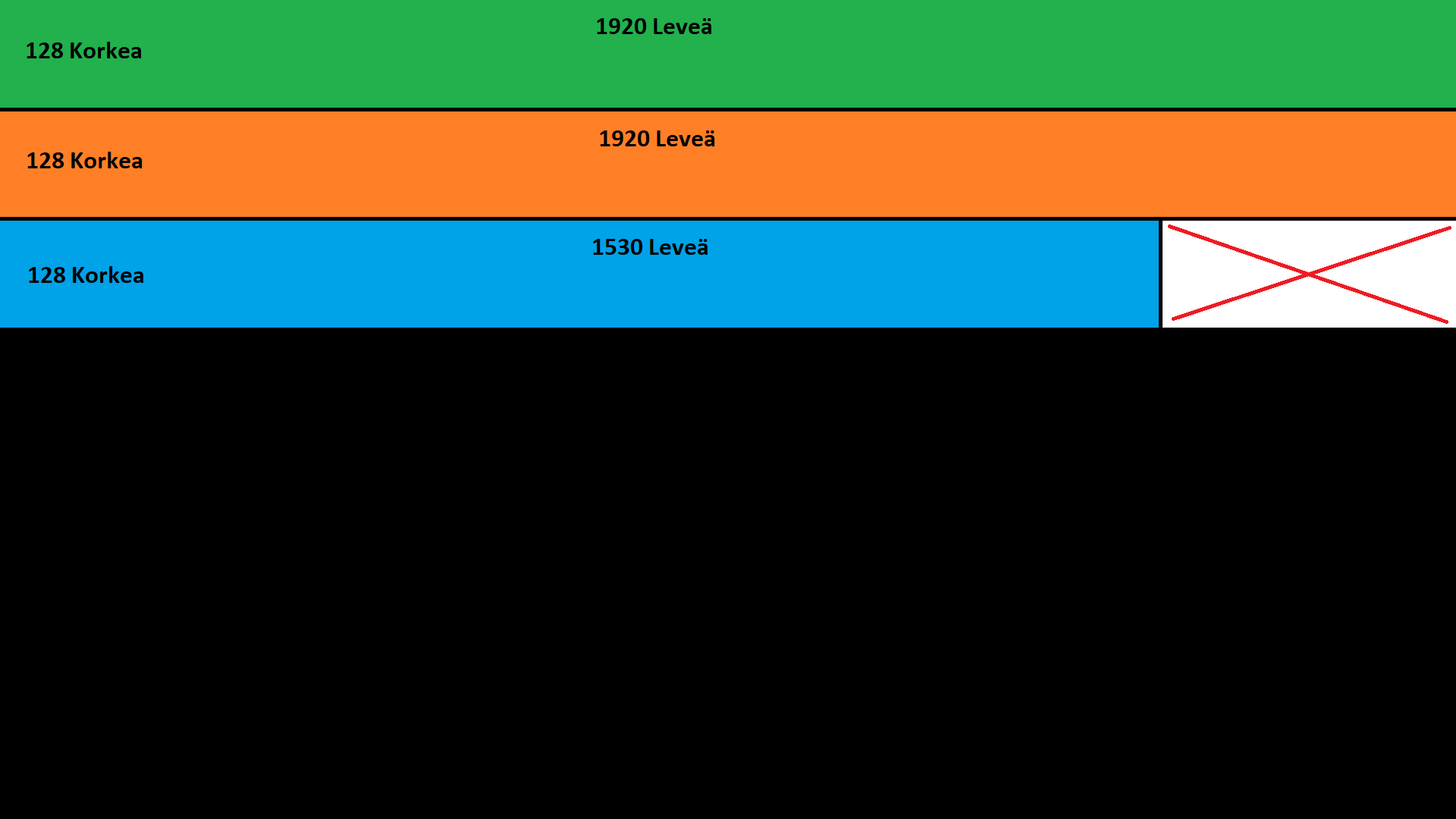
The display resolution is 5370×128. Material is created 1920×1080The image is displayed on three lines, from which a video processor drives it to LED perimeter modules. Below is an illustrative image of how the perimeter material should be created. The video should also be created in a similar manner.