Karin Campus – Instructions for Using the Scoreboard System
Rauma Karin Campus
Instructions for using the scoreboard system
Current operating instructions for the sports available for you during matches:
Floorball
Volleyball
Fsalute
Basketball
This page contains the preliminary arrangements required for the use of the Jidokan scoreboard system. If you wish to modify the files displayed during a match, the necessary files must be downloaded in advance. before the match For the USB stick, from which the match content is transferred to the scoreboard via the control tablet.
In case of problems, please contact support@jidoka.fi.
NB!
A change has been made to the system, as a result of which subfolders need to be created in the /media/ and /ad/ folders. Based on these, files will go to the correct displays. The folders to be used in your system are: Isoled, Left, Right. Isoled is the main display, Left and Right are the end displays. This enables different files to be run on different displays.
Display Information
File requirements
Images to display: jpg and PNG
Media files MP4
Audio files MP3 and wav
Media Media displayed on the main screen should be at least Full HD, i.e. 1920 × 1080 pixels.
Ad:
Advertisements shown in the middle of the screen during the match: 1920×1080 pixels, 16:9 aspect ratio.
Advertisement file formats jpg, JPEG, PNG and MP4
Logo files PNG, JPEG or jpg, me
nimi 400 by 400 pixels (1:1 aspect ratio)
Please note: Text files must be saved in UTF-8 format.
USB stick pre-setup
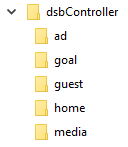
Create a folder on the USB stick called dsbController and subfolders inside this folder ad, guest, Home, media and goal.
-
adIn-game advertisements displayed on the scoreboard advertising space
Subfolders must be created in the ad-folder for your displays:
Isolated - material created in the folder for the main screen for automatically changing advertisements during the match
Vase -in the folder at the left end for automatically changing advertisements during the match-
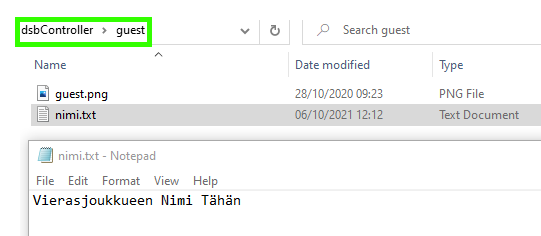
Correct -in the folder at the left end for automatically changing advertisements during the match- - Guest. The away team's logo and name. The logo is an image named ”guest” and the name is a .txt file with the team name on the first line.
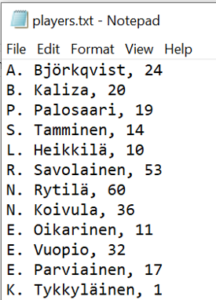
In basketball players.txtA text file named, listing the team's players, following the structure shown in the image below:- First initial, full stop, space, surname, comma, space, player number
- Player details per row, max. 13 characters.
- A maximum of 12 players per team.
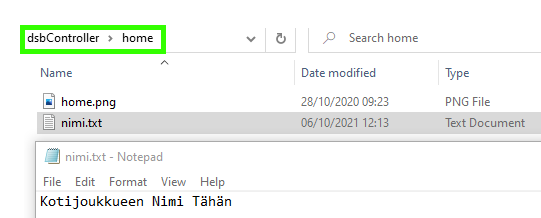
- home The content corresponding to the guest folder, but with the filename for the logo being home.png
In basketball players.txtA text file named, listing the team's players, following the structure shown in the image below:- First initial, full stop, space, surname, comma, space, player number
- Player details per row, max. 13 characters.
- A maximum of 12 players per team.
- media Video and audio files played via the video and audio lists that open from the ”Show video” and ”Play audio” options on the control tablet menu.
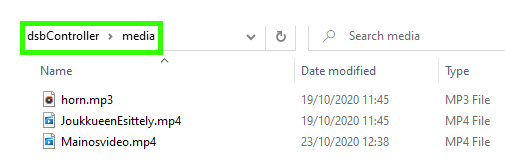
Your summer sound can be added to this folder hornnamed .mp3as a file.
Subfolders must be created in the media folder for your monitors:
Isolated - Folder for material created on the main screen to be displayed during the match
Vase In the folder at the left end for media displayed during the match
Correct in the folder at the left end for media shown during the match
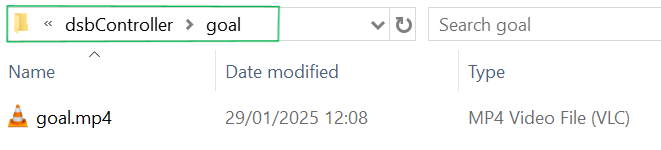
- goalVideo or videos to be played with the score video button. If multiple videos are added, they will be played by pressing the button. random Video.
Subfolders must be created in the goal folder for your displays:
Isolated -goal video created onscreen in folder to be played with the goal video button
Vase -a goal video created on the screen on the left end in the folder to be played with the goal video button
Correct -a goal video created on the screen on the left end in the folder to be played with the goal video button
Control unit
The LED screen is controlled by a NovaStar VX1000, to which the display's media player is connected via HDMI input. Instructions for the VX1000 can be found on the manufacturer's website: https://oss.novastar.tech/uploads/2023/11/VX1000-All-in-One-Controller-User-Manual-V1.3.1.pdf
ACTION OF THE THROWING BELL
The stopwatch controller's buttons 1 and 2, with 1 being the upper button and 2 the lower accordingly when The controller is in hand, cable away! The controller tablet also has buttons 1 and 2, the function of which is the same as below.
Status: game clock not running, throw clock empty:
1. Pendulum clock 14
2. Stopwatch 24
Title: game clock not running, stopwatch time (not running)
Empty the pendulum
2. No operation
Status: Game clock running, hopper empty
1. It's ten to two and it's working
2. It's going on 24 hours and it's running
Tila: pelikello käy, heittokellossa aika ja se käy
Empty the bell
2. Stop the stopwatch (time freezes)
Title: Game clock is running, the throw clock has time and it's not moving
Empty the bell
2. Start the timer