Vantaa trailer – Instructions for using the scoreboard system
Vantaa Trailer – Instructions for use
General instructions for media usage in the Jidoka scoreboard system.
The media shown on the scoreboard (team names and logos, advertisements, etc.) must be uploaded to the scoreboard system before the match via USB stick. The media is supplied on the stick to the control tablet, which then transfers the material to the scoreboard.
The file transfer is explained in more detail in the category-specific instructions.
In case of problems, please contact support@jidoka.fi.
File requirements
Image files: .jpg, .jpeg yes .PNG
Video files: .MP4
Audio files: .MP3 yes .wav
The scoreboard's main display size is 576*340 px. This should be taken into account when preparing full-screen media.
Maximum recommended size for in-game ads: 1920 x 1080 px (Aspect ratio 16:9).
Log files: minimum size 400 x 400 px (aspect ratio 1:1).
Video file resolution is a maximum of FullHD, meaning 1920×1080. The video bitrate should be limited 5000 kbit/s.
USB stick pre-setup
Create a folder named dsbController on the USB stick and subfolders within this folder ad, goal, guest, home and media.
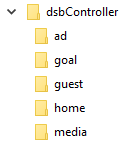
advertisement in-game advertisements which repeat in the scoreboard advertising space
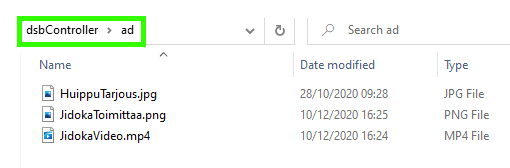
goal: A video that can be manually replayed in a scoring situation
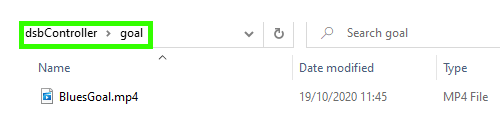
- Freely assignable .mp4 video file
Guest. Away team name and logo
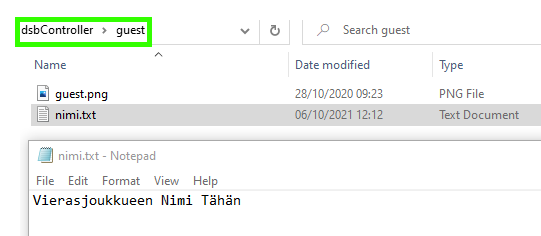
- Logo on guestimage file named
- the name is nimi.txt-named text file, the first line of which contains the team name..
home name and logo of the home team, as well as javelin.txt
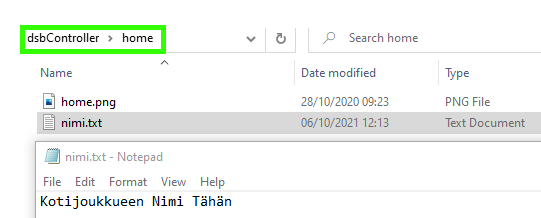
- content as in the guest folder, but the logo is homeimage file named.
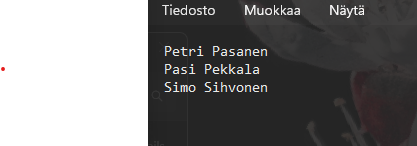
- in the javelin.txt file: different pitchers on each line. Below is an example picture.
media manually repeatable content
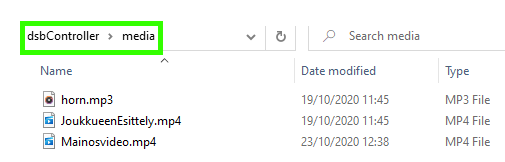
- ”Show the media” -image, video and audio files that are repeated by the function
- Image and video files are played in full screen on the scoreboard
- Your summer sound can be added to this folder hornnamed .mp3as a file.
Using an HDMI source
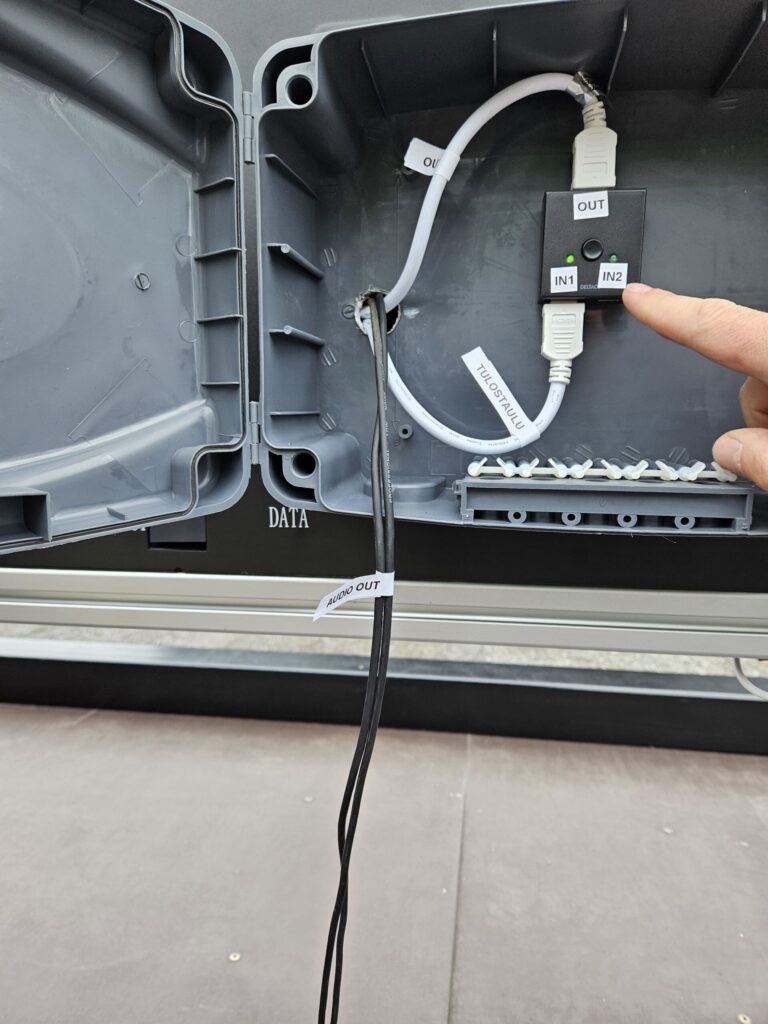
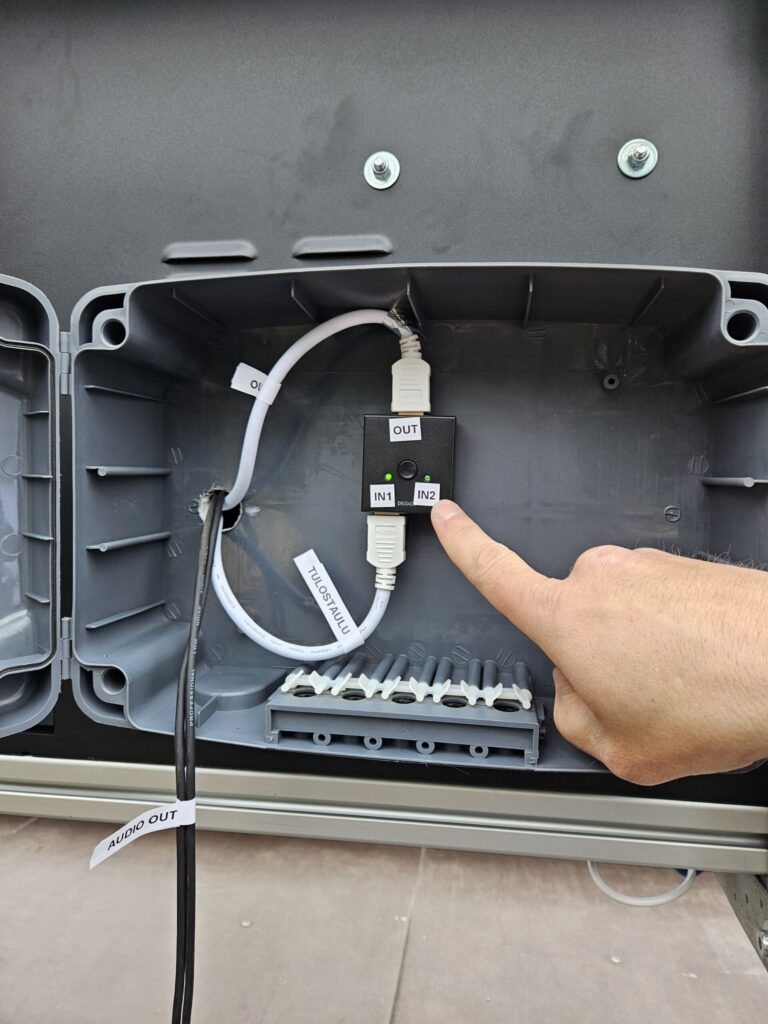
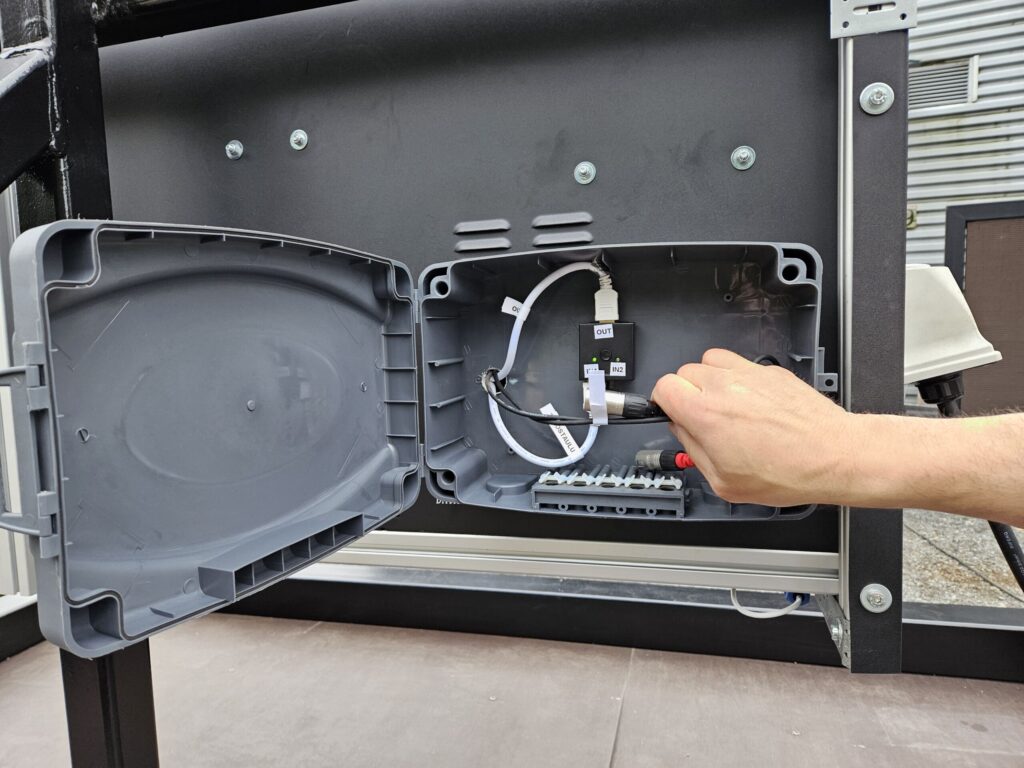
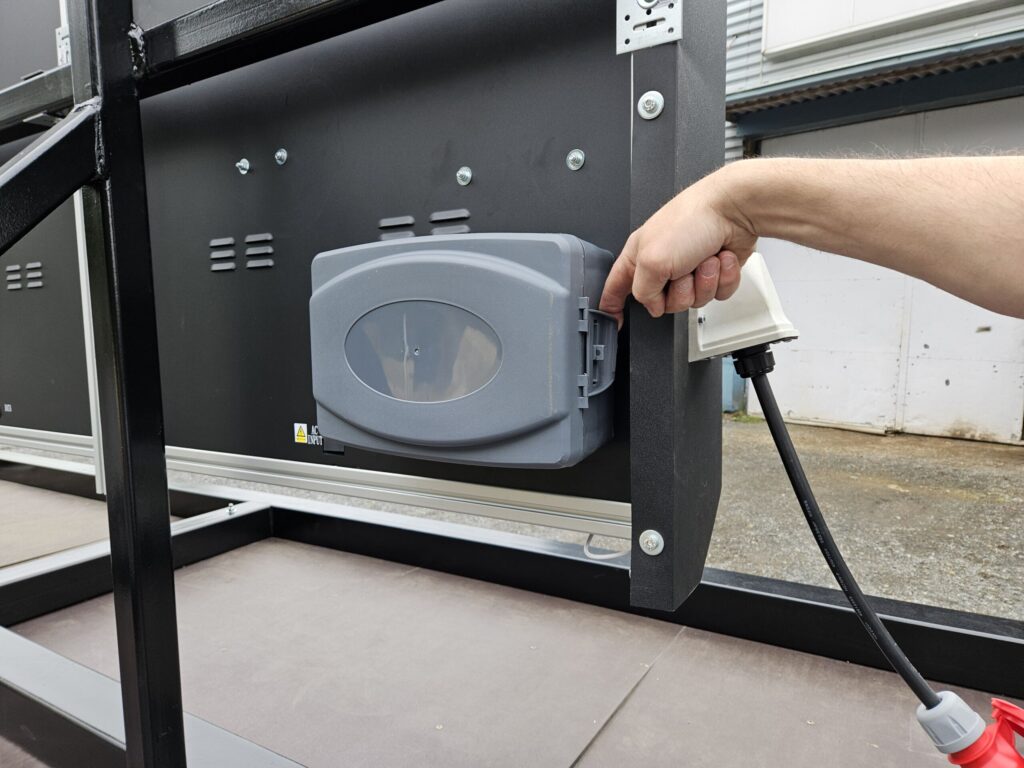
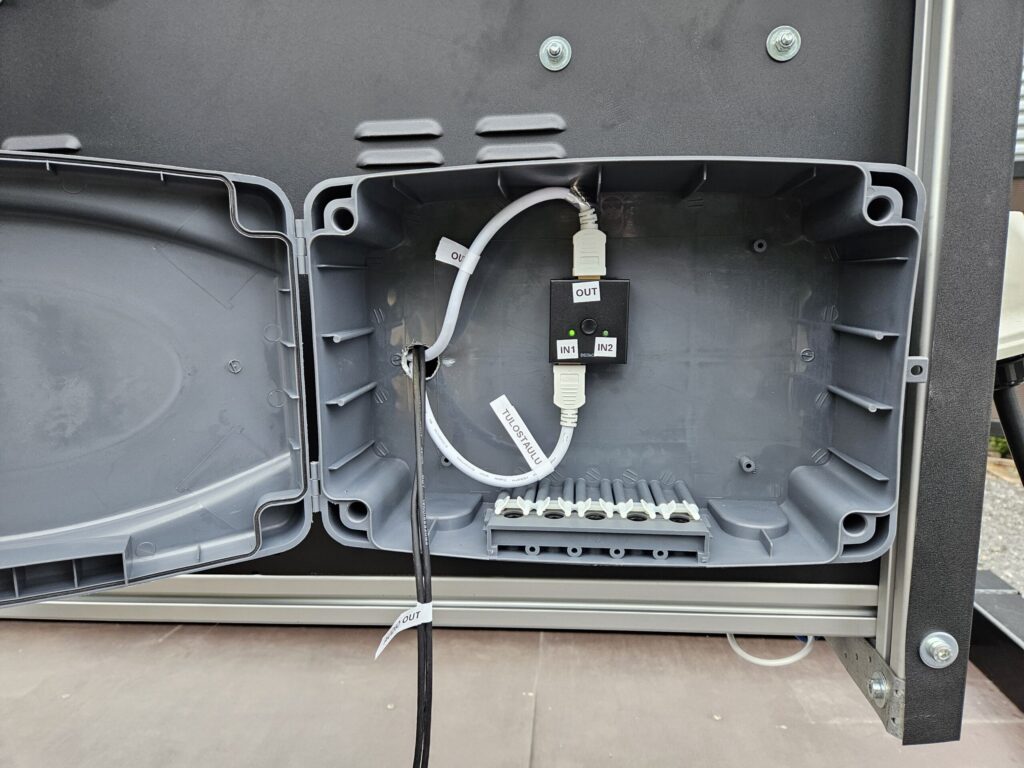
The display system is equipped with an external HDMI switch that allows you to bring your own source of video to the screen, e.g. from a PC. The HDMI switch is located in the box behind the display. Connect the new source of video to the free HDMI port on the switch and configure your device to send the HDMI signal. After that, press the button on the switch and the switch will switch your source of video to the screen. When you stop using your own image source, press the switch again and ensure that the image from the scoreboard system remains on the screen for the next user.
Marathon sport
The marathon is a simple watch with a large clock displayed on the face. This can be used to measure the total time of the race.
- Choose from the Marathon sport selection
- Select ”Create match” from the menu in the upper left corner”
- The duration of the round is the maximum time; this does not need to be changed. Select ”Create”
- The clock is started from the button visible on the left and, if necessary, it can be stopped from the button on the right. The value of the clock can also be changed as it runs.
In problem situations
If you encounter problems with the scoreboard, please proceed as follows:
- Please check that the connection ball visible in the top right corner of the controller is green
- If it is red, restart the device and check that the device is online.
- If the light is green but the system isn’t working, try restarting the entire scoreboard system by clicking ”Restart System” in the menu at the top left. This will restart the system and take approximately 2 minutes.
- If you are experiencing sound issues, please check that the XLR cable coming from the scoreboard control cabinet is connected to the stadium’s sound system and that the system settings are correct.
- IF THE DISPLAY IS ON AND BLACK, MAKE SURE THAT THE HDMI INCH is selected as the correct source. The other source is the output panel.
- ATTENTION: THE USB FLASHER ONLY WORKS WITH THE USB FLASHER LIST! Make sure you have brought the USB flash drive with the USB FLASHER LIST to the device!
- If these don't help, send a message. support@jidoka.fi and write a description of the problem, and when the problem occurred (date and time). With this information, resolving the problem will be easier.