Before the match starts
Go through these points well in advance of the match. The most important thing is to ensure that the scoreboard, control tablet, media, and sound are working before the game starts.
Prepare the system
- Ensure the control tablet is charged and running.
- Check that the connection indicator is green.
- Choose the correct species from the species selection.
- Create a match or open the required match view.
- Transfer team names, logos and other media from the USB stick.
Test before playing
- Check that the team names and logos are displayed correctly on the scoreboard.
- Test the game clock, points, and other sport-specific buttons.
- Test advertisements, videos and other display media.
- Ensure that the buzzer, sounds and announcements can be heard through the venue's sound system.
- If you are using an HDMI source, check that the image is displayed and then return the source back to the input board after testing.
The sounds are important to test beforehand
Sound issues are often only noticed when the match starts. Test the buzzer, videos, and any announcements beforehand.
Media preparation
Prepare the material according to the venue dimensions below. The full-screen material and the match advertising area may have different aspect ratios.
| Contents | Shape |
|---|---|
| Pictures | JPG, JPEG, PNG |
| Video | MP4 |
| Sounds | MP3, WAV |
| Team name | TXT |
| Usage | Size or recommendation |
|---|---|
| Photos and videos | 1920 × 1080 px |
| Logo | At least 400 × 400 px |
The recommended maximum video bitrate is 5000 kbps. The transparent logo is saved in PNG format. Ensure the visibility of images, videos and logos before the event.
USB drive folder structure
Create a folder at the root of the USB stick dsbController. Save the material under it in the following folders.
Use an NTFS-formatted USB stick. Only NTFS is supported. Recognising a large USB stick can take up to 20 seconds.
| Folder | Contents |
|---|---|
ad | Advertising images and videos to be shown during the match. |
goal | Scoring data. |
guest | Away team logo and name. |
home | Home team's logo and name. |
media | Manually displayed images, videos and sounds. |
| File | Location and use |
|---|---|
home.png, home.jpg or home.jpeg | Home team logo home-folder. |
guest.png, guest.jpg or guest.jpeg | Away team logo guest-folder. |
nimi.txt | Within the team's own home- or guestin the folder. The first line is the team name. |
horn.mp3 | My buzzer media-folder. |
Select the manual material of the controller Show video- or Play sound -feature. Use clear file names and test the material before the match.
Jos goalfolder doesn't have its own goal video, the system default video will be used. Custom goal horn sound is saved as a file media/horn.mp3; if no file of your own is provided, the default buzzer is used.
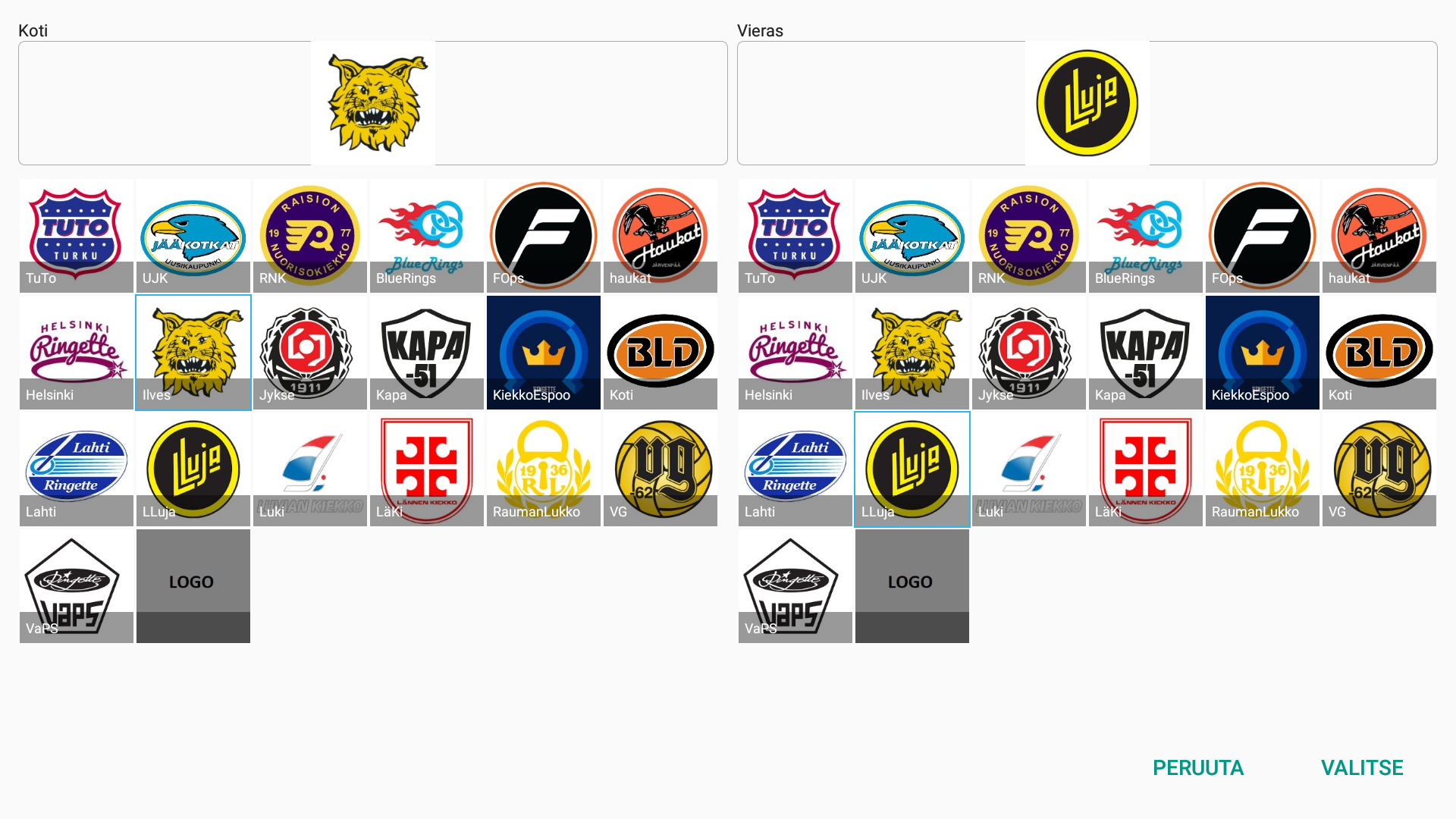
Use of the floorball logo library
- Bring the USB stick's material before choosing the logos.
- Select floorball and tap the current logo or the grey one LOGObutton.
- Select both teams' logos. The file name will form the team name. A grey LOGO means that no logo has been selected.
Connecting a USB stick resets the logo selections. Please reselect the logos afterwards. Simply selecting the logo keeps the other files.
Note on the team name: If a team name has already been imported into the system from a USB memory stick, the logo selector will not apply the team name corresponding to the selected logo. Delete the previously imported team name from the system before selecting the logo.
New logos to be added to the library should be sent to support@jidoka.fi.
Sound check
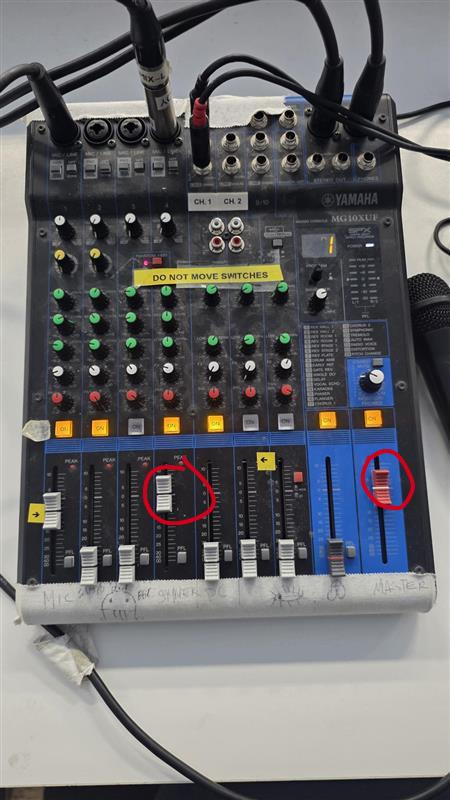
Check the volume levels and test the sounds before the match starts.
Check these
- Switch on the amplifier in the cupboard.
- Make sure the mixer is switched on.
- Check the volume of mixer channel 5 and the master volume.
- Check the touch controller volume.
Test finally
Ensure that the buzzer, videos and any public address announcements can be heard through the venue's sound system.
Problem situations
Start with the symptom and go through the steps in order.
Connection to the scoreboard is not working
- Check the connectivity indicator in the top-right corner of the control tablet.
- If the indicator light is red, restart the control tablet.
- Check that the control tablet is online.
The system is not responding, even though the connection indicator is green.
- Open the top-left menu.
- Select Start the system.
- Please wait approximately 2 minutes and test the system again.
The sound is not working
- Check the audio cable connections to the venue's sound system.
- Check the system's audio settings.
- Test the sound with another media file.
Contact support
If the problem is not solved by the instructions, please include the location, category, date, time, description of the problem, and information on what troubleshooting has already been attempted in your support request.