Jyväskylä Hippos – Instructions for using the scoreboard system
Jyväskylä Hippos Pesäpallo Stadium
Instructions for using the scoreboard system
Current operating instructions for the sports available for you during matches:
Finnish baseball
Printable instructions for using an external HDMI source: Instructions for changing HDMI
This page contains the preliminary arrangements required for the use of the Jidokan scoreboard system. If you wish to modify the files displayed during a match, the necessary files must be downloaded in advance. before the match For the USB stick, from which the match content is transferred to the scoreboard via the control tablet.
In case of problems, please contact support@jidoka.fi.
Display Information
The screen is P6.67 5.76 x 3.84 m = 22.12 m2
The screen resolution is: 864×576 px
File requirements
Images to display: jpg and PNG
Media files MP4
Audio files MP3 and wav
Media
Creating a visually striking material for a full screen area: 864×576 pixels, in a 3:2 aspect ratio.
The material can be created in double resolution, which makes it easier for a computer to do: 1728 x 1152 pixels.
Ad:
Advertisements shown in the middle of the screen during the match: 1920×1080 pixels, 16:9 aspect ratio.
Advertisement file formats jpg, JPEG, PNG and MP4
Logo files PNG, JPEG or jpg, minimum 400 x 400 pixels (1:1 aspect ratio)
USB stick pre-setup
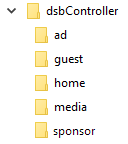
Create a folder on the USB stick called dsbController and subfolders inside this folder ad, guest, Home, media and Sponsor.
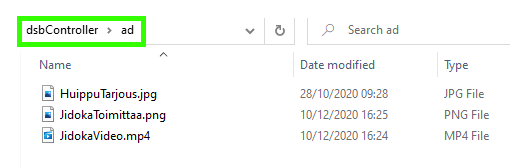
- advertisement Advertisements shown on the display board, which can be images and videos. If you put multiple images and/or videos in a folder, they will all be shown sequentially on the screen.
- Guest. The away team's logo and name. The logo is an image named ”guest” and the name is a .txt file with the team name on the first line.
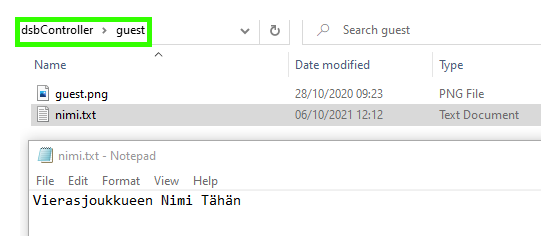
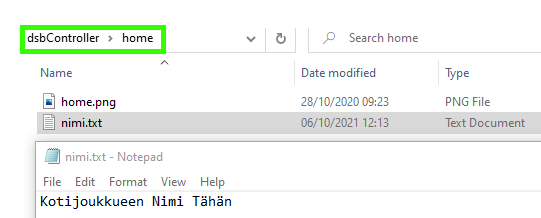
- home The content corresponding to the guest folder, but with the filename for the logo being home.png
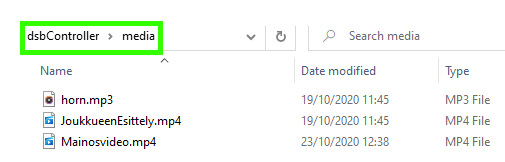
- media Video and audio files played via the video and audio lists that open from the ”Show video” and ”Play audio” options on the control tablet menu.
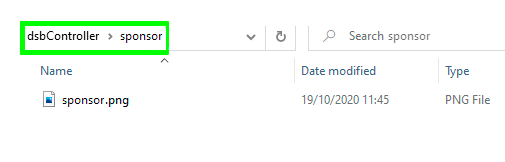
- sponsor The image file in the left vertical bar is .jpeg or .png. It allows you to set, for example, match-specific sponsor logo files.
The LED screen is controlled by a NovaStar VX600 device, to which the display's media player is connected via HDMI input. The VX600 device's instructions can be found on the manufacturer's website:
https://oss.novastar.tech/uploads/2022/02/VX600-All-in-One-Controller-User-Manual-V1.1.0.pdf
Displaying an image from an external source
To display an image from an external source, the VX600 has a built-in feature. ”preset” which to change to when using an external source via HDMI.
The device has the following presets ready:
- Preset 1 – For the shooting target
- Preset 2 – For external HDMI
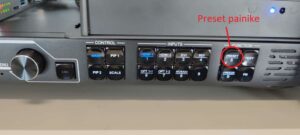
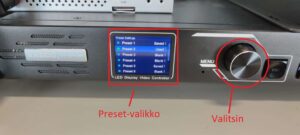
Connect the HDMI cable to the desired source and then press ”Preset” a button that opens the menu. Select ”Preset 2” by rotating the dial on the right side of the screen and pressing the dial in. In the new dialogue, press ”Load” by pressing the button again. The image has now been changed on the screen.
To return the image to the scoreboard, press ”Preset” the button and select ”Preset 1” by rotating the selector to the correct position and pressing it down. In the dialogue that opens ”Load” and press the selector, which will change the image back to the scoreboard.